Key Takeaways
- In today’s visual-driven digital world, images are everywhere — from memes and news to eCommerce and blogs.
- But what if you see an image online and want to know where it came from, who owns it, or where else it appears?
- That’s where a Reverse Image Search comes in.
- In this complete guide, you’ll learn how to perform a reverse image search from your phone (Android & iPhone) and desktop, using Google, Bing, and Small SEO Tool’s Reverse Image Search Tool — step by step.
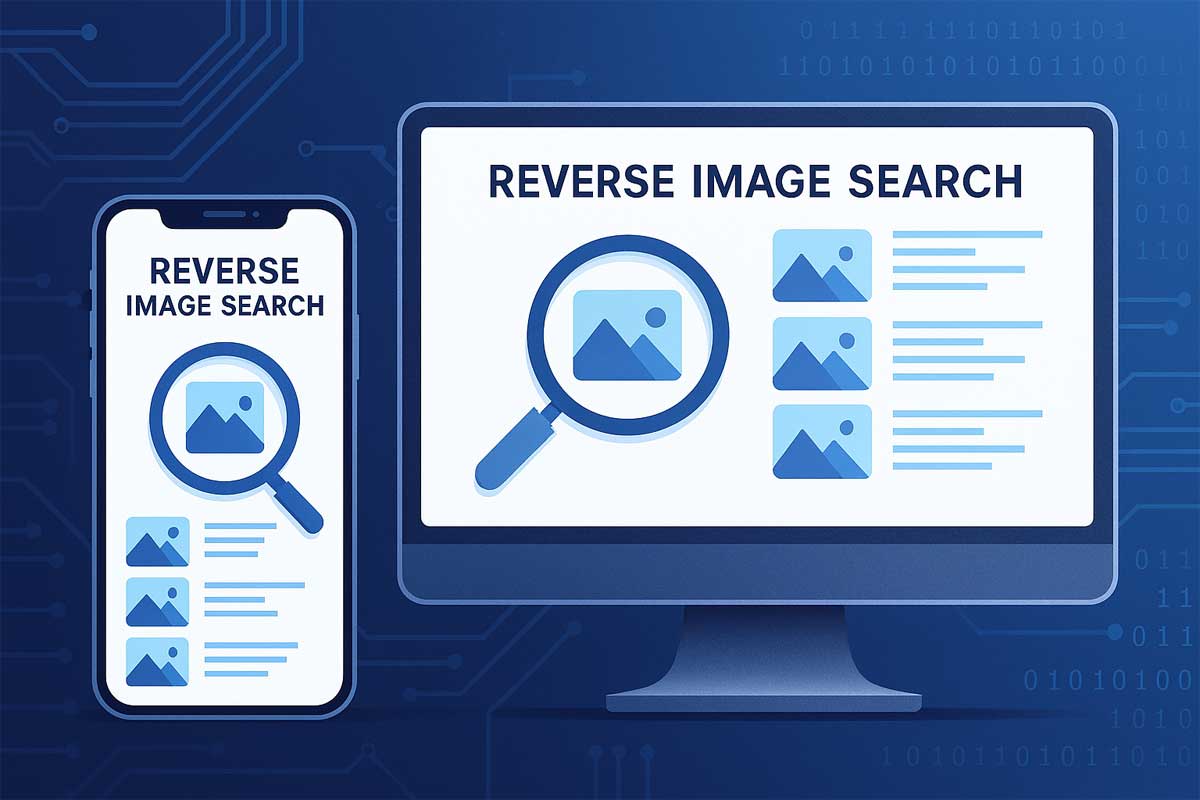
- Reverse Image Search is a technique used to find similar or identical images online.
- Instead of typing keywords, you upload an image or paste its URL, and the search engine scans the web for matches.
In today’s visual-driven digital world, images are everywhere — from memes and news to eCommerce and blogs. But what if you see an image online and want to know where it came from, who owns it, or where else it appears? That’s where a Reverse Image Search comes in.
In this complete guide, you’ll learn how to perform a reverse image search from your phone (Android & iPhone) and desktop, using Google, Bing, and Small SEO Tool’s Reverse Image Search Tool — step by step.
What Is a Reverse Image Search?
Reverse Image Search is a technique used to find similar or identical images online. Instead of typing keywords, you upload an image or paste its URL, and the search engine scans the web for matches.
It’s like telling the internet, “Find everything that looks like this picture.”
Why You Should Use Reverse Image Search
Reverse image search isn’t just a fun trick — it’s a powerful SEO and verification tool. Here’s why it’s essential:
- ✅ Find Original Image Source – Perfect for bloggers and journalists.
- ✅ Check Copyright or Image Ownership – Ensure you’re not using copyrighted visuals.
- ✅ Detect Fake Profiles or Scams – Identify stolen profile pictures.
- ✅ Verify Product Authenticity – Useful for eCommerce and dropshipping.
- ✅ Discover High-Resolution Versions – Great for designers and media professionals.
- ✅ Boost SEO with Proper Attribution – Link back to the rightful image owner for SEO trust signals.
How Reverse Image Search Works (Explained Simply)
When you upload or paste an image into a reverse image search tool, it uses content-based image retrieval (CBIR) and AI-driven pattern recognition to analyze:
- Shapes
- Colors
- Metadata
- Watermarks
- Patterns
Then it matches these characteristics with billions of images indexed across the web.
Best Tools for Reverse Image Search (2025 Edition)
Here are the top tools you can use on your phone or computer:
- Google Images (Classic and most popular)
- Small SEO Tools Reverse Image Search (multi-search engine integration)
- Bing Visual Search
- TinEye (dedicated reverse image search engine)
- Yandex Images (advanced pattern recognition for global results)
reverse image search, how to reverse search image, reverse image search phone, reverse image search desktop, Google reverse image search, TinEye alternative, image finder tool, photo source checker, SEO image search, image verification
How to Do a Reverse Image Search on Desktop (PC or Laptop)
1. Using Google Images
Step-by-Step Guide:
- Go to Google Images.
- Click on the camera icon in the search bar.
- Choose Upload an image or Paste image URL.
- Click Search by Image.
- Browse visually similar images or pages where the image appears.
Pro Tip: Use Chrome browser — just right-click on any image and select Search image with Google.
2. Using Small SEO Tools Reverse Image Search
Steps:
- Visit the Reverse Image Search Tool on Small SEO Tool.
- Upload an image or paste the image link.
- The tool automatically searches across Google, Bing, and Yandex.
- Get instant results from multiple engines.
✅ No login or software installation required.
3. Using TinEye
- Go to TinEye.
- Upload your photo or paste the link.
- The tool finds where the image appears online and detects modifications (cropping, filters, etc.).
4. Using Bing Visual Search
Bing’s AI visual engine identifies not just the photo, but objects inside it.
Steps:
- Visit Bing.com/VisualSearch.
- Upload the image or take a screenshot.
- Bing shows similar photos, related products, and source pages.
How to Do Reverse Image Search from Your Phone
1. Reverse Image Search on Android
Option 1 – Using Chrome Browser:
- Open Chrome.
- Long press the image you want to search.
- Tap “Search Image with Google Lens.”
- Instantly view visually similar images and websites.
Option 2 – Using Small SEO Tool’s Reverse Image Search:
- Visit Small SEO Tool’s Reverse Image Search page.
- Upload your photo from gallery or take a new one.
- Tap Search to get results across multiple engines.
2. Reverse Image Search on iPhone (iOS)
Option 1 – Safari Browser Method:
- Open Safari and go to Google Images.
- Tap “AA” → Request Desktop Site.
- Tap the camera icon to upload an image.
- Google shows where the image appears online.
Option 2 – Using Google Lens App:
- Install Google app.
- Tap the Lens icon beside the search bar.
- Take a photo or upload from gallery.
- Get instant visual matches and similar results.
Using Reverse Image Search for SEO & Digital Marketing
Reverse image search isn’t only for personal use — it’s a smart SEO strategy.
Here’s how it can help marketers:
- 🔍 Find where your images are used (track backlinks and mentions).
- 🔗 Request proper credits or backlinks for image use.
- 📈 Boost your brand’s visibility across media.
- 🚫 Detect plagiarism of infographics, product photos, or brand logos.
Also try our free Plagiarism Checker Tool.
How to Reverse Image Search a Screenshot
Screenshots work too!
- Save your screenshot.
- Upload it to Small SEO Tool’s Reverse Image Search.
- Get results that match specific screen elements, icons, or interface patterns.
This is especially useful for UI/UX designers, bloggers, and tech reviewers.
Reverse Image Search Without Uploading (Using URL)
Don’t want to upload files? Just:
- Copy the image URL (right-click → Copy Image Address).
- Paste it into Small SEO Tool’s Reverse Image Search.
- Click Search Image to get all visual matches.
Common Problems and How to Fix Them
| Issue | Cause | Solution |
|---|---|---|
| Image not found | Too small / new image | Use higher resolution version |
| Wrong results | Cropped or edited image | Try full version of image |
| Camera icon missing | Mobile view issue | Switch to desktop mode |
| Poor matches | Low-quality upload | Use Small SEO Tool for multiple engine search |
Tips to Get Better Reverse Image Search Results
- Use clear, high-resolution images.
- Avoid screenshots with text overlays.
- Crop unnecessary background before uploading.
- Try multiple engines (Google, Bing, Yandex).
- Combine Small SEO Tool to get results from all in one go.
How Reverse Image Search Helps Detect Fake News & Misinformation
Journalists and fact-checkers use reverse image search to trace image origins.
For instance:
- A viral photo might be old or misused.
- Reverse searching reveals when and where it first appeared.
This helps you verify authenticity — essential for media ethics and trust.
Future of Reverse Image Search (AI and Visual Search 2025)
AI tools like Google Lens, Pinterest Lens, and Visual ChatGPT are revolutionizing search.
Soon, text-based SEO will combine with visual search optimization.
Marketers must optimize images with:
- Descriptive alt text
- File names
- Proper metadata
So that images rank better in both textual and visual searches.
Conclusion
Reverse Image Search is more than just a curiosity tool — it’s a digital detective that helps you uncover truth, protect copyrights, and optimize content for SEO.
Whether on phone or desktop, using Small SEO Tool’s Reverse Image Search saves time and gives multi-platform accurate results instantly.
FAQs – Reverse Image Search
Q1. Can I do a reverse image search without an app?
Yes, use the Chrome browser or Small SEO Tool’s web-based reverse image search.
Q2. Does reverse image search work on screenshots?
Absolutely. As long as the screenshot contains visible elements, the tool will match them.
Q3. Which is better: Google or Small SEO Tool?
Small SEO Tool combines results from multiple search engines—Google, Bing, and Yandex—giving wider coverage.
Q4. Is reverse image search free?
Yes, the tool is 100% free with no registration needed.
Q5. Can I search using a camera photo directly?
Yes, upload or take a new photo using the tool’s mobile camera option.
अपने फोन या डेस्कटॉप से रिवर्स इमेज सर्च कैसे करें (2025 गाइड)
आज के डिजिटल युग में, हर जगह तस्वीरें हैं — सोशल मीडिया, न्यूज, ब्लॉग्स और ई-कॉमर्स वेबसाइट्स।
कई बार हम किसी फोटो को देखते हैं और जानना चाहते हैं कि ये तस्वीर कहां से आई है, इसका मालिक कौन है, या क्या ये असली है।
इसी काम के लिए आता है — Reverse Image Search (रिवर्स इमेज सर्च)।
Reverse Image Search क्या होता है?
रिवर्स इमेज सर्च एक ऐसा तरीका है जिसमें आप किसी फोटो को सर्च इंजन पर अपलोड करते हैं और वो उसी जैसी या मिलती-जुलती तस्वीरें पूरे इंटरनेट से खोज देता है।
Reverse Image Search क्यों ज़रूरी है?
- ✔️ असली इमेज सोर्स पता करें
- ✔️ कॉपीराइट या ओरिजिनल ओनर की जांच करें
- ✔️ फेक प्रोफाइल या स्कैम पकड़ें
- ✔️ प्रोडक्ट की असलियत चेक करें
- ✔️ हाई रेज़ॉल्यूशन वर्ज़न खोजें
- ✔️ SEO में इमेज को सही क्रेडिट दें
रिवर्स इमेज सर्च कैसे काम करता है?
जब आप कोई फोटो अपलोड करते हैं, तो टूल उस इमेज के कलर, पैटर्न, शेप और मेटाडाटा को स्कैन करता है और इंटरनेट पर मिलती-जुलती इमेज से तुलना करता है।
2025 में बेस्ट Reverse Image Search Tools
- Google Images
- Small SEO Tool Reverse Image Search
- Bing Visual Search
- TinEye
- Yandex Images
डेस्कटॉप या लैपटॉप से Reverse Image Search कैसे करें
Google Images के जरिए
- गूगल इमेजेज खोलें
- कैमरा आइकन पर क्लिक करें
- इमेज अपलोड करें या URL डालें
- “Search by Image” दबाएं
- रिजल्ट में वही या मिलती-जुलती तस्वीरें देखें
Small SEO Tool Reverse Image Search से
- वेबसाइट खोलें
- फोटो अपलोड करें
- टूल अपने आप Google, Bing और Yandex से रिजल्ट दिखा देगा
मोबाइल से Reverse Image Search कैसे करें
Android पर
- Chrome में इमेज पर लॉन्ग प्रेस करें
- “Search image with Google Lens” दबाएं
या
Small SEO Tool पर फोटो अपलोड करें और सर्च करें।
iPhone पर
- Safari में Google Images खोलें
- “Request Desktop Site” चुनें
- कैमरा आइकन से इमेज अपलोड करें
Reverse Image Search के फायदे (SEO और Marketing में)
- वेबसाइट बैकलिंक ट्रैक करें
- चोरी की गई इमेज पकड़ें
- ब्रांड विजिबिलिटी बढ़ाएं
- SEO इमेज ऑडिट करें
निष्कर्ष
Reverse Image Search एक शक्तिशाली टूल है जो आपको सच्चाई जानने, कॉपीराइट बचाने, और SEO सुधारने में मदद करता है।
चाहे मोबाइल हो या कंप्यूटर, Small SEO Tool Reverse Image Search से आप आसानी से एक क्लिक में परिणाम पा सकते हैं।
FAQs (अक्सर पूछे जाने वाले सवाल)
प्रश्न 1: क्या Reverse Image Search मुफ्त है?
➡️ हां, 100% फ्री है।
प्रश्न 2: क्या मैं बिना ऐप के सर्च कर सकता हूं?
➡️ हां, Chrome या Small SEO Tool से कर सकते हैं।
प्रश्न 3: क्या स्क्रीनशॉट पर भी सर्च हो सकता है?
➡️ हां, अगर उसमें साफ विजुअल हो।
Related Articles